User Manual
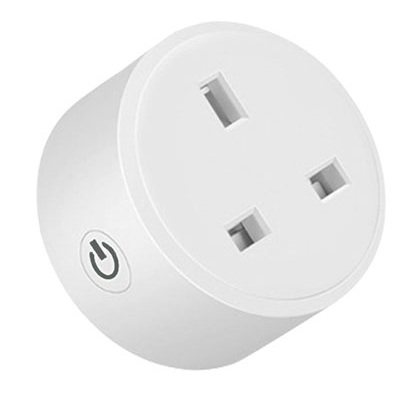
Indoor Smart Plug Type G (with Energy Monitoring)
SKU: PW-ACT-PLUG2
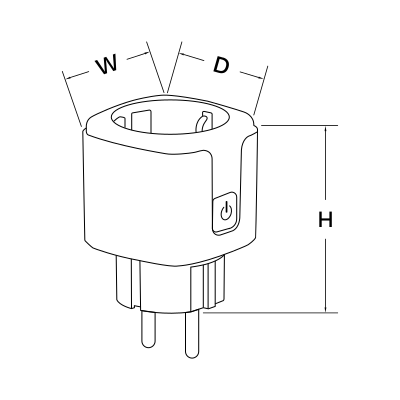
W: 50 mm
H: 63 mm
D: 50 mm
| Operating Temperature | +32°F - +122°F |
| Operating Temperature (°C) | 0 - +50 |
| Operating Humidity | 0 - 85% RH Non-condensing % RH |
| IP Rating | IP20 |
| LED Indicators | Yes |
| Operation Range | 45 m |
| Connectivity | Zigbee |
| Communication Frequency | 2.4GHz |
| Safety Features | Overload protection, Over voltage protection, Short circuit protection, Thermal protection |
| Panel Material | ABS+PC material |
| Product Color | White |
| Power Consumption | 0.4 W |
| Current | 16.0 A |
| Max Load | 3680W |
The smart plug can be controlled from the Dashboard and from the I/O list.
Available functions:
The current outlet status is shown in the application.
The smart plug has built-in power measurement.
Available measurements:
Use these values to monitor the connected device and analyse its energy usage.
The smart plug is a Zigbee router and extends the coverage of the PIERRE Wave network: better signal coverage, a more stable network and a longer wireless range.
For best performance, distribute smart plugs throughout the installation to strengthen the Zigbee mesh.
Before adding the smart plug, make sure that:
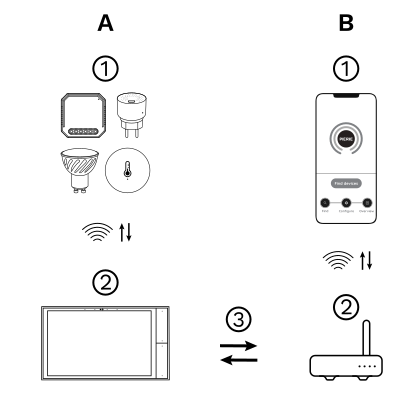
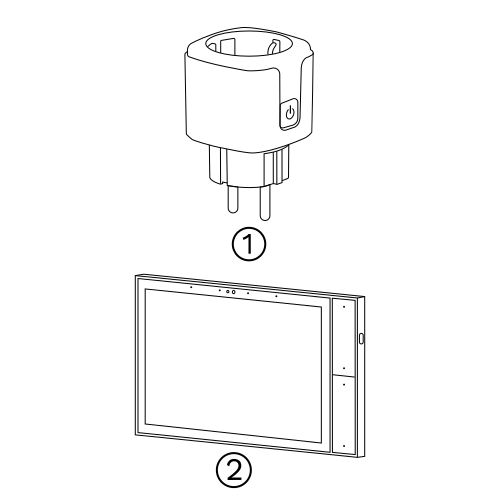
The PIERRE Wave (Zigbee 3.0, 2.4 GHz) system consists of the following components.
Required
Optional
Operation: the gateway connects to the router by Wi-Fi or LAN. PIERRE Wave products communicate wirelessly with the gateway in both directions: commands are sent and status updates are received through the Smart PIERRE app.
Zigbee gateway: a PIERRE display and/or gateway. One of those must already be commissioned before the device can be added.
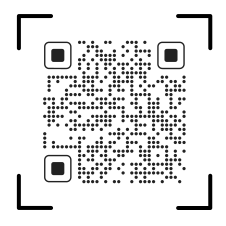
Please scan the QR code to download PIERRE application
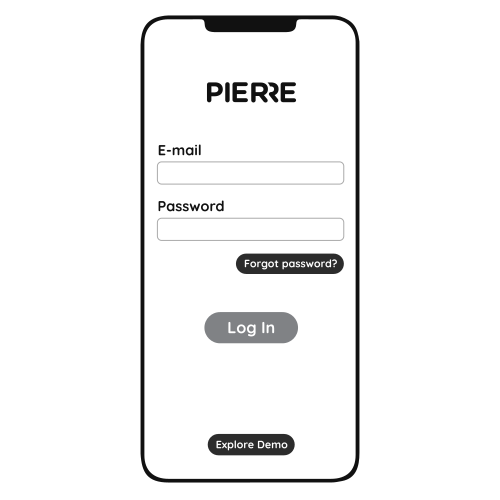
Log in with your Username and Password
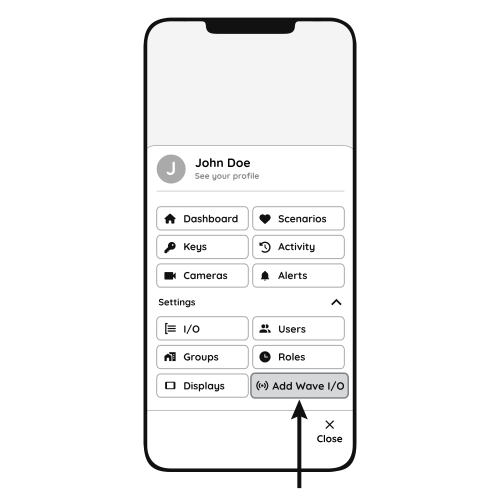
Open Settings and press "Add Wave I/O"
Press and hold the Reset Key for 10 seconds until the Indicator Light starts flashing
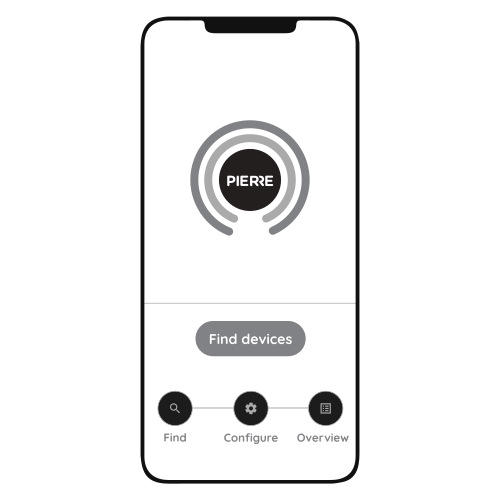
Press "Find Devices"
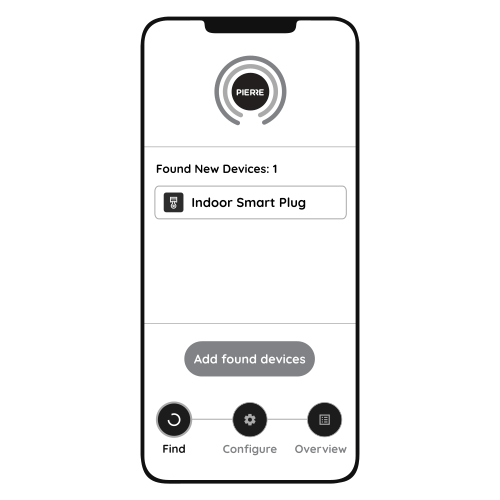
PIERRE application will show the list of available devices. Press "Add found devices"
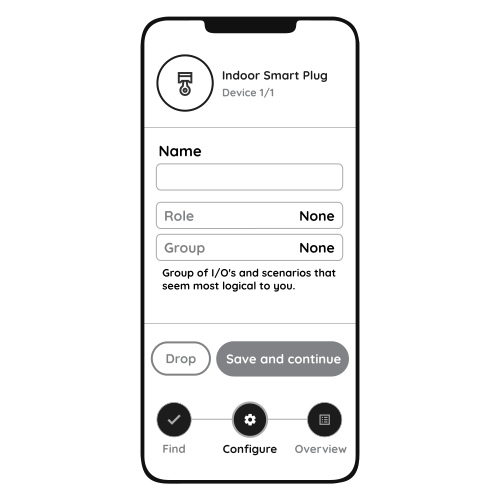
Enter Name, Role and Group settings and Save it
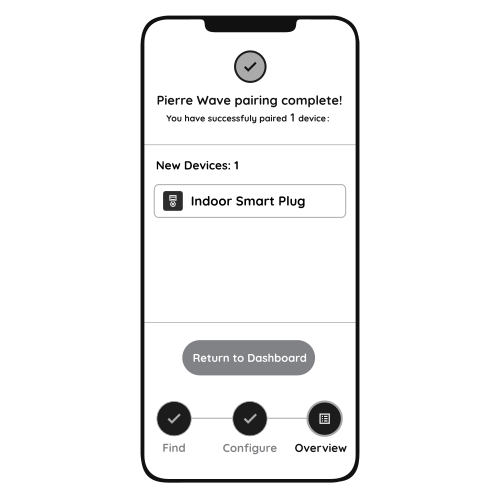
When the Light indicator stops flashing, the PIERRE Wave pairing process is finished
PIERRE Academy | How to set up and use the PIERRE Wave Smart Plug. https://www.youtube.com/watch?v=bTNtYiDbYuk
Yes. The smart plug is compact and fits into standard wall sockets while leaving adjacent outlets accessible.
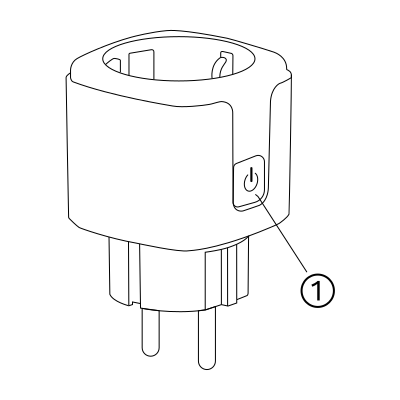
Yes. The power button on the plug switches the connected device on or off without the app.
Yes. The plug reports the power consumption (W) and the energy consumption (kWh) of the connected device; both are shown in the Smart PIERRE app.