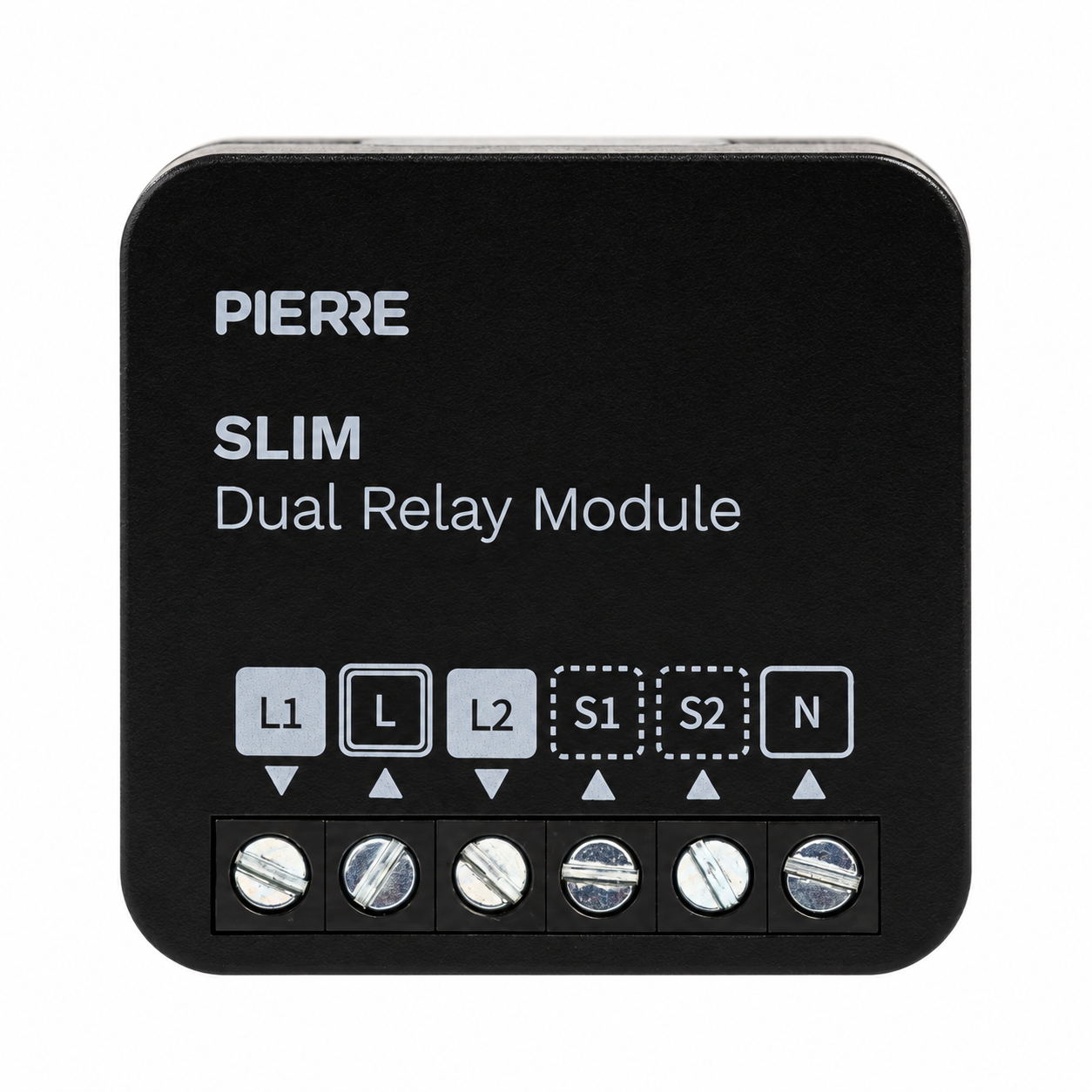
PIERRE Slim – Dual Relay Module (L+N)
User Manual

PIERRE Slim – Dual Relay Module (L+N)

SKU: PW-MOD-2GL-1GB-LN
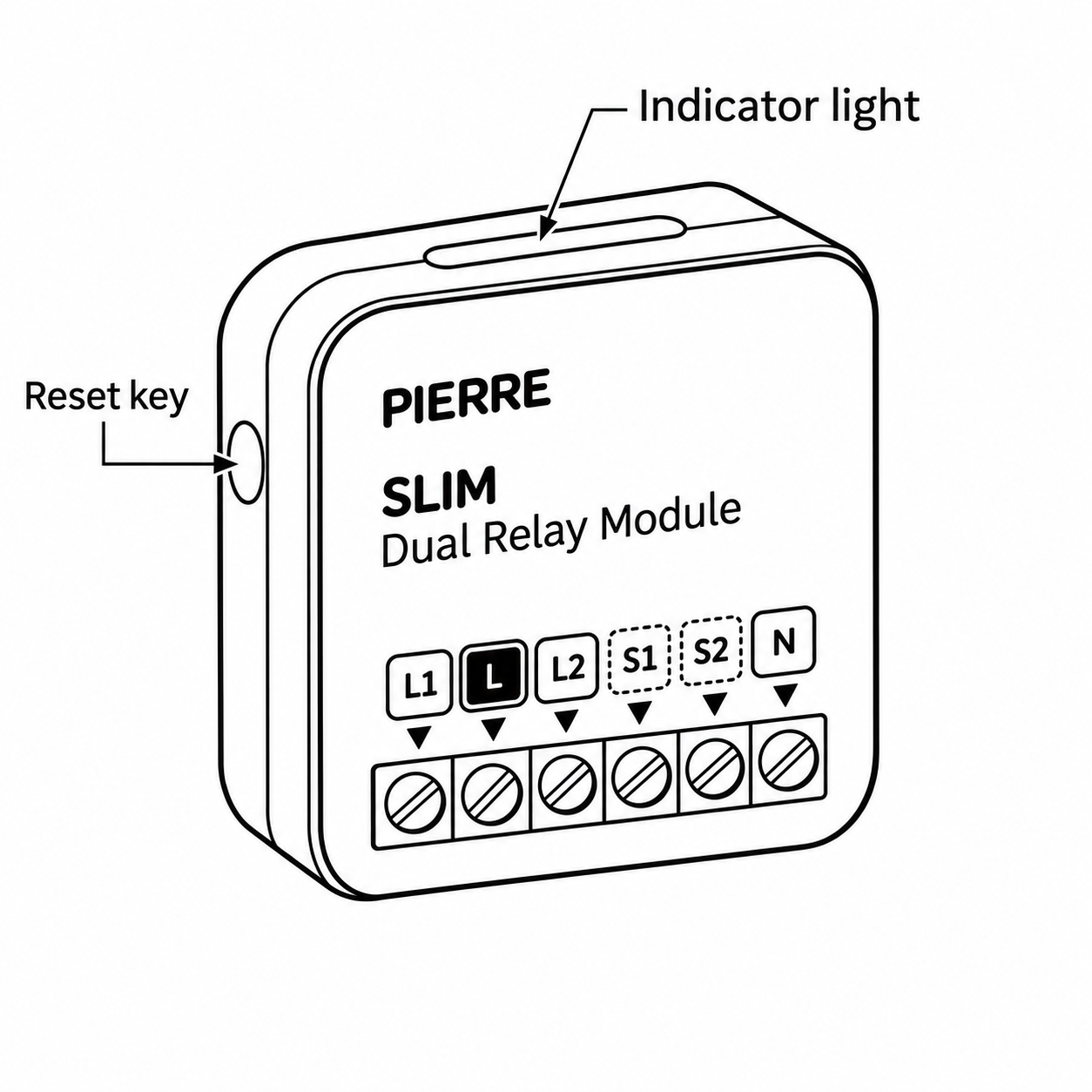
1. Product Description

Image
  1. Indicator Light
  2. Reset Key

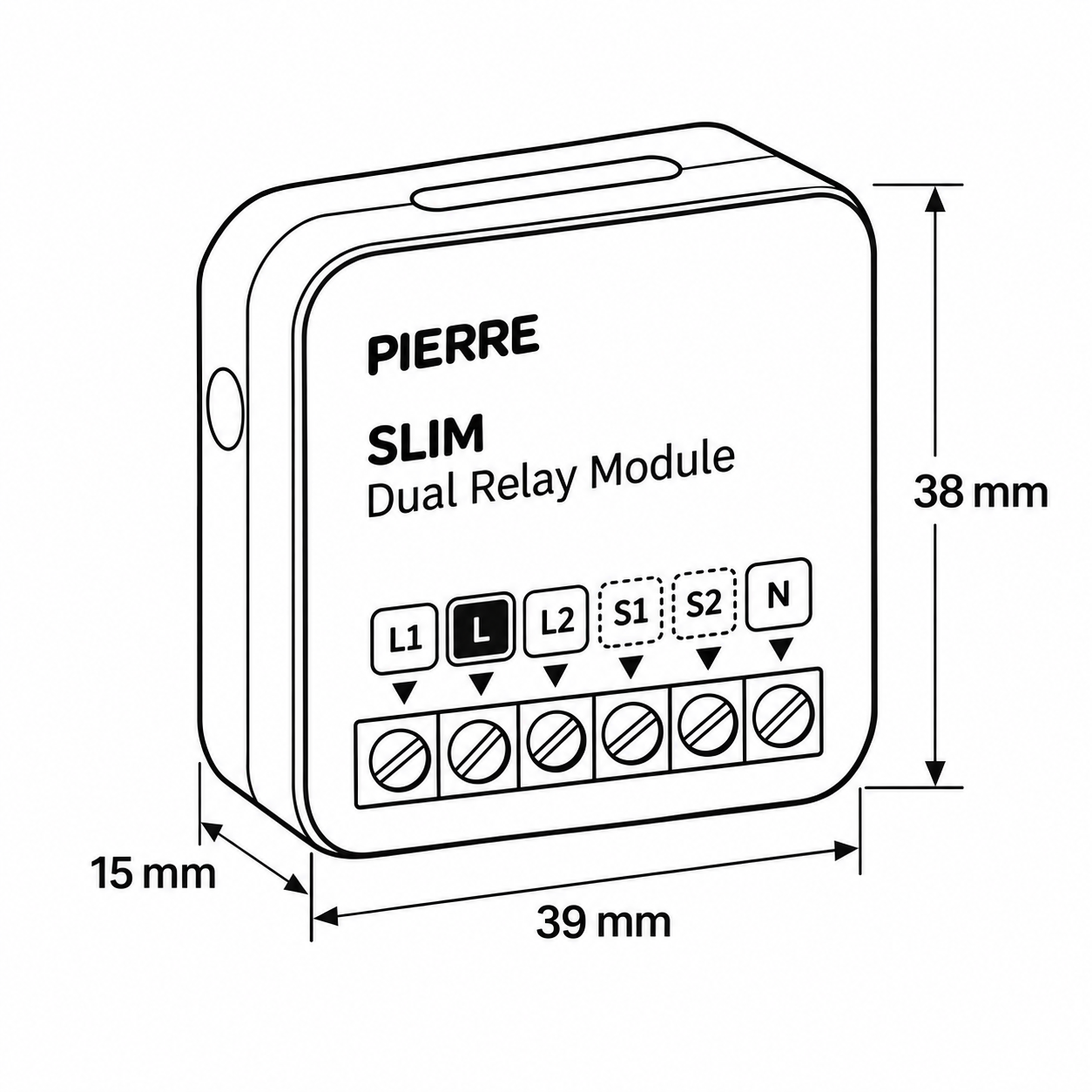
2. Product Size

Image
  • W: 39 mm
  • H: 38 mm
  • D: 15 mm

3. Technical Specification

Technical Specifications

Electrical

Power Supply 100-240V AC 50-60Hz
Max Load Resistive: 200W x 2 LED lights: 150W x 2

Environmental

Operating Temperature +14°F - +104°F
Operating Temperature (°C) -10 - +40
Operating Humidity ≤ 80% RH % RH
IP Rating IP20

Features

LED Indicators Yes

Physical

Width 39 mm
Height 38 mm
Depth 15 mm
Weight 22 g
Panel Material ABS+PC material
Product Color Black
Wiring Requirements N - Neutral, L - Live

Connectivity

Connectivity Zigbee

Safety

Safety Features Overload protection, Over voltage protection, Short circuit protection, Thermal protection, Electrostatic protection, Surge protection

Control

Number of Channels 2 channels

Certification

Warranty 2 years

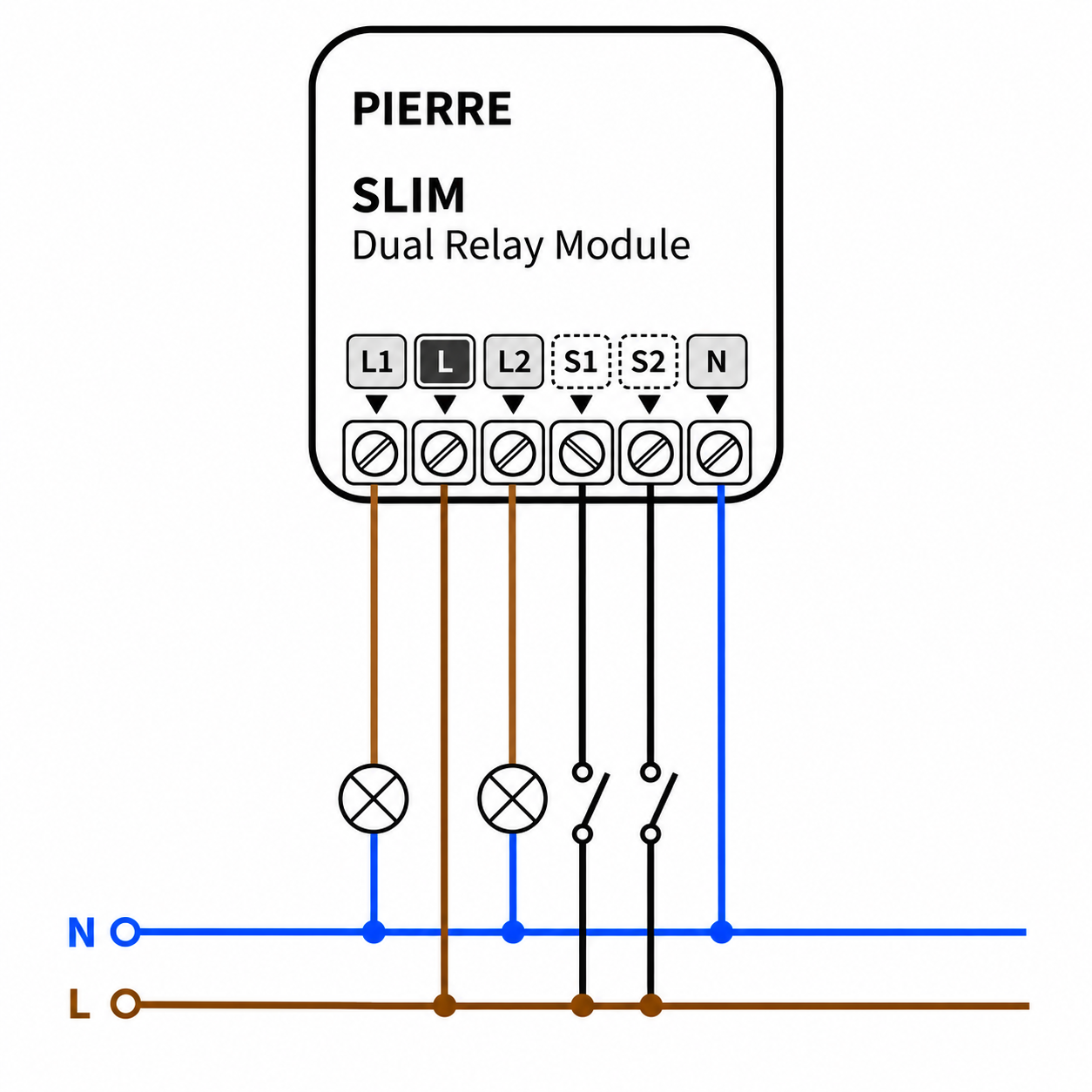
4. Wiring

Image

Slim Dual Relay Modul - 2 gang lights wiring

Image

Slim Dual Relay Modul - 1 gang blind or curtain wiring
5. System requirements

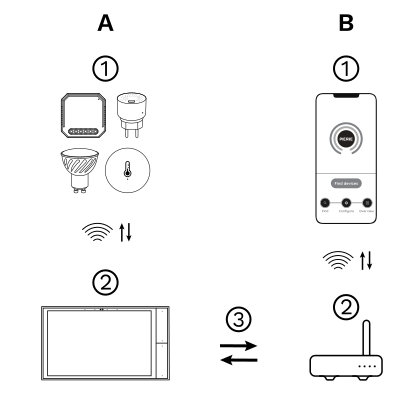
Image

The PIERRE Wave system is a user-friendly solution for integrating and managing smart devices through a central platform. The system consists of the following components:

A - Required Elements:

  1. PIERRE Wave Products: These smart devices, including lighting, thermostats, sensors, and other appliances, connect wirelessly to the PIERRE Wave Gateway. They provide essential functions and capabilities for the system.
  2. PIERRE Wave Gateway: The central unit linking all PIERRE Wave devices, the gateway manages communication and data exchange, ensuring security and stability. It supports remote access and control, with the default Berlin display interface, though users can choose any PIERRE display model.

B - Optional Elements:

  1. Mobile PIERRE App: This app allows users to manage and monitor the system from their smartphone or tablet, offering real-time updates and remote access. It provides convenience but is not necessary for basic system operation.
  2. Router: An optional component that enables internet connectivity, allowing devices to be accessed and controlled remotely.

  1. System Operation: The gateway can connect to the router via Wi-Fi or LAN for internet connectivity, enhancing remote management capabilities. PIERRE Wave products communicate wirelessly with the gateway, which acts as the central hub. This bidirectional communication allows data to flow both ways, enabling users to send commands and receive status updates through the Mobile PIERRE App. The app facilitates effective management and real-time feedback on device statuses.

6. App-to-Device Pairing

Image

Please scan the QR code to download PIERRE application
 

Image

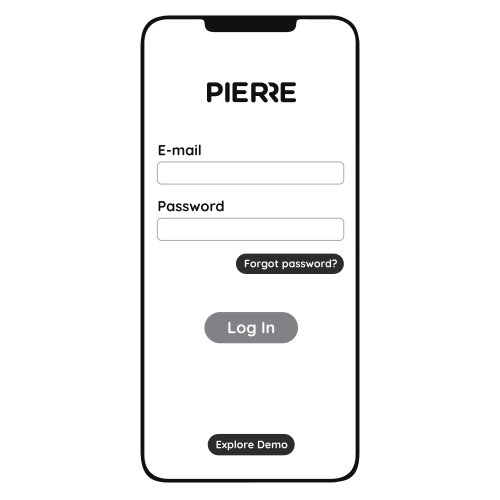
Log in with you Username and Password
 

Image

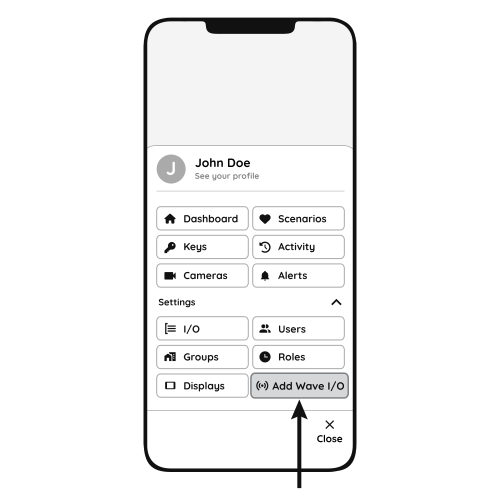
Open Settings and press "Add Wave I/O"
 

Image

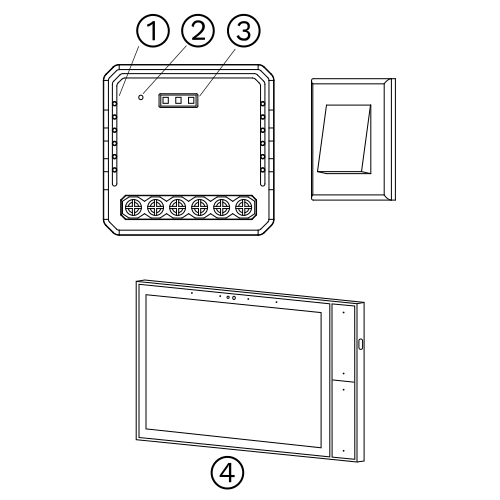
Press and hold the Reset Key for 10 seconds (use a small, thin object like a paperclip) until the Indicator Light starts flashing
  1. Indicator Light
  2. Reset Key
  3. RF Receiver Connector (not supported)
  4. PIERRE Wave Gateway
Image

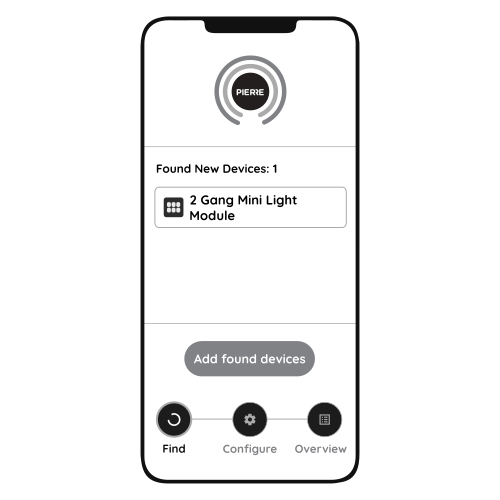
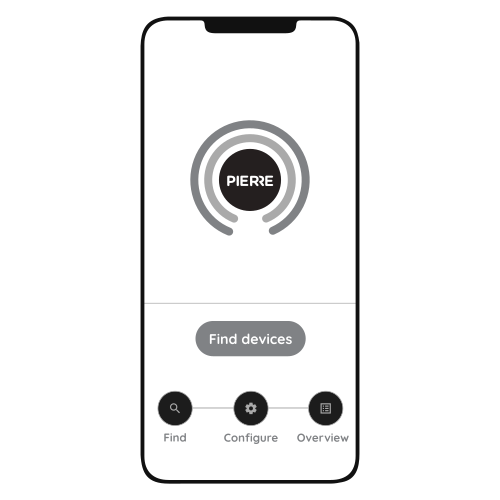
Press "Find Devices"
 

Image

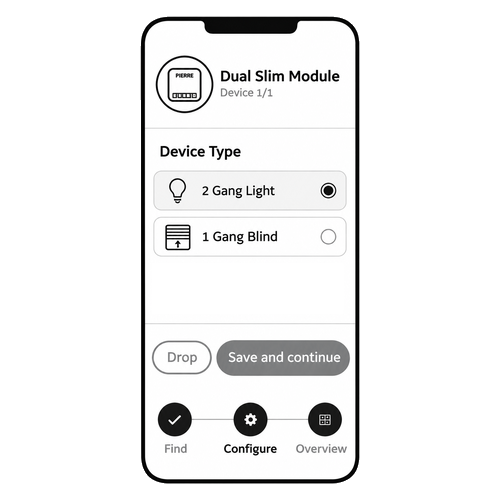
PIERRE application will show the list of available devices. Press "Add found devices"
 

Image

Select one of the following operating modes for the Dual Relay Module:
  • 2-Gang Lighting: Control two independent lighting circuits.
  • 1-Gang Blind/Curtain: Control one motorized blind or curtain.


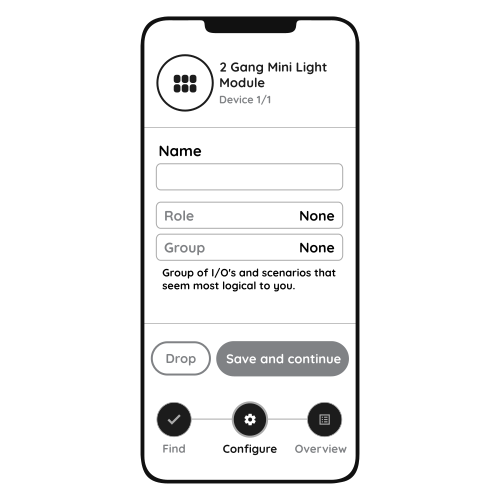
Image

Enter Name, Role and Group settings and Save it
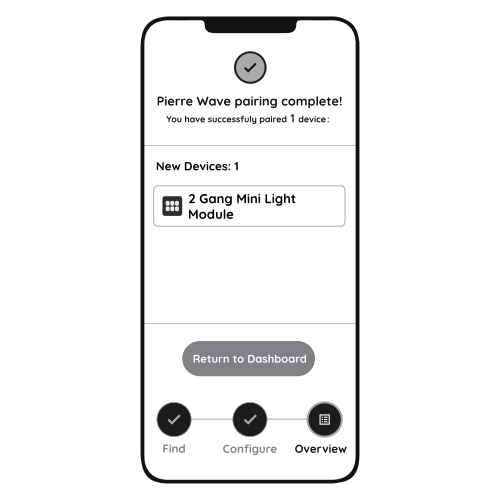
 

Image

When the Light indicator stops flashing, the PIERRE Wave pairing process is finished
 

7. FAQ

Q1: What should I do if I can’t configure the switch module? 

  • Please check whether the device is powered on.
  • Make sure the PIERRE Gateway is available.
  • Make sure the wiring is correct. 


Q2: What device can be connected to this PIERRE switch module? 

It can be connected to devices such as ceiling lamps, panel light, etc.

Q3: What happens if the WIFI goes off? 

You can still control the device connected to the switch module with your traditional switch and with PIERRE Displays. 

Q4: How do I reset the device? 

1. Switch on/off the traditional switch for 5 times until the indicator light flashes. 
2. Press the reset key for about 5 seconds until the indicator light flashes.